AI Tools
How to use GPT Image 2.5 for generation and precise edits
Start with a real image task in ChatGPT, refine one area at a time, and use the API model comparison only if you are building an image workflow.
Contents
The first draft of a poster is rarely the hard part. The hard part is changing one line of text or one object without losing the composition you already like. GPT Image 2.5 is aimed at that revision loop. This guide shows how to try it in ChatGPT, where free access ends, and what the two API model names mean.
Checked on October 10, 2026. Features, limits, and API prices can change. Cost guidance is for reference only; check your account and OpenAI’s current documentation before paying.
What changed in GPT Image 2.5?
OpenAI introduced ChatGPT Images 2.5 on September 8, 2026. It reports more natural lighting and textures, better preservation of subjects from reference photos, and more reliable instructions across several edits. OpenAI also says generation latency is up to 50% lower than Images 2.0. That is an upper-bound claim, not a promise that every request finishes twice as fast.
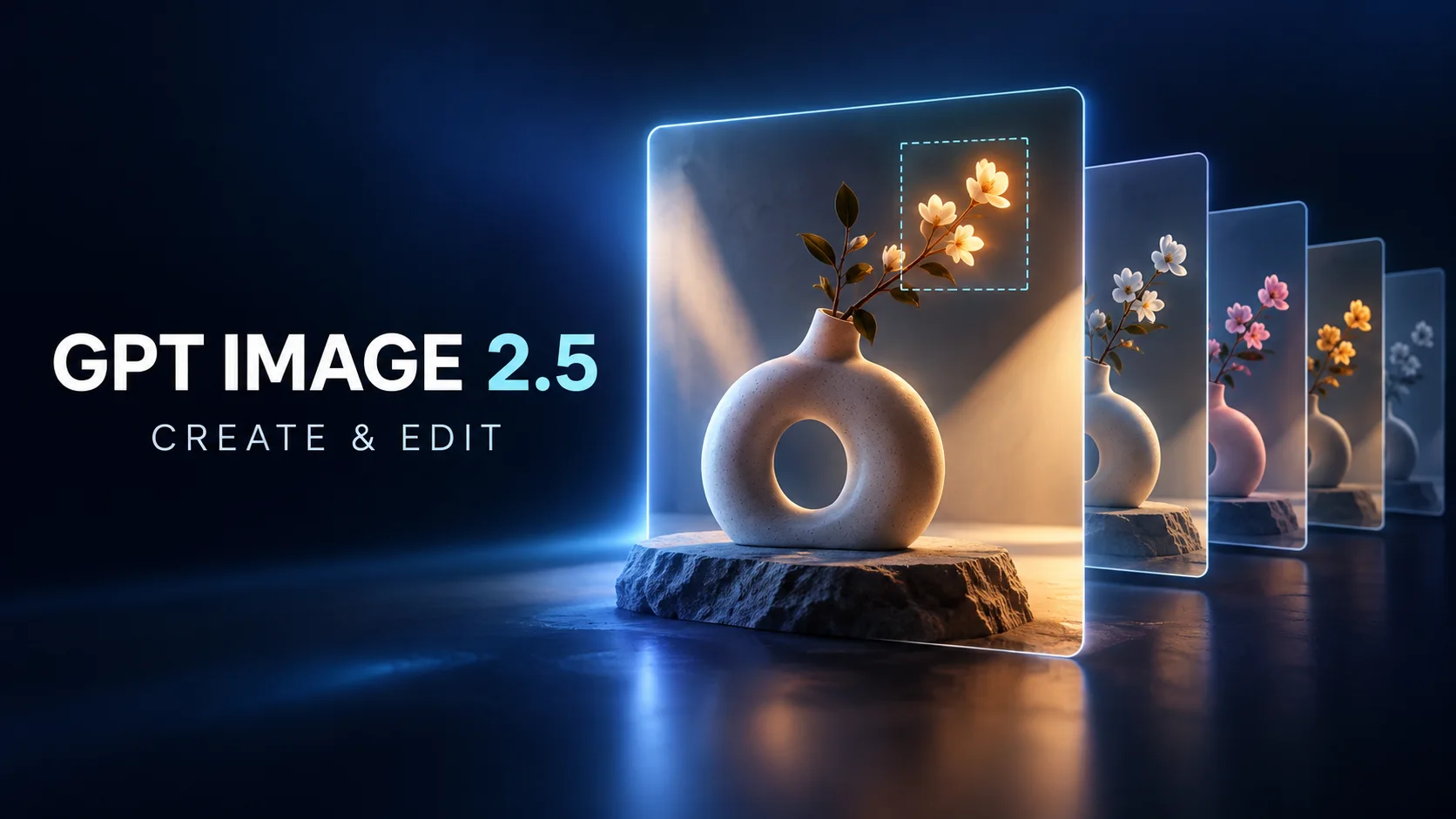
The ChatGPT workflow also gained ways to steer an image: selections and comments for focused edits, Sketch as a drawn reference, templates for common formats, and prompt sharing. These are product features in ChatGPT. Flare and Sunburst are separate API model choices, primarily relevant to developers.
To judge the upgrade for your work, try two revisions of the same source image. Change one object, then change only the background. Check whether the subject, layout, and text survive both rounds. That tells you more than comparing two unrelated first drafts.
Create and edit an image in ChatGPT
- Open ChatGPT on the web or mobile. Describe the image in a conversation, or open Images and enter a prompt. Include the subject, intended use, aspect ratio, visual style, and any exact text.
- Open the result. To change one area, select that area and describe the edit; you can also describe its location in the conversation without selecting it.
- Inspect the entire image after the edit. OpenAI warns that a selection is not a pixel-perfect boundary, so nearby details may change too.
For a square coffee poster, a first prompt could be:
Create a 1:1 poster for an iced latte on a wooden table, with warm natural light and space for a headline at the top right. Include only the words “SUMMER LATTE”; add no other text.
Then ask: “Replace only the paper straw with a metal straw. Keep the drink, table, headline, and composition unchanged.” Naming both the requested change and what should stay helps make the edit testable. Still proofread small text, prices, logos, and product details before publishing.
On mobile, @Sketch can turn a rough drawing into a reference for generation. Templates are available through Images, although OpenAI’s help page says they are not yet available in Work mode. Controls may vary by surface.
Is GPT Image 2.5 free?
OpenAI says ChatGPT Images is available on all tiers, including Free. Access is subject to usage limits; availability does not mean unlimited image generation. The allowance and reset time shown in your own account are more useful than a fixed number quoted in an article.
For occasional covers or mockups, start with Free and test your actual workflow. If you need sustained volume, compare a paid ChatGPT plan with API usage after measuring how often you generate and revise. ChatGPT plan limits and API billing are separate systems, so API token rates do not translate into a reliable “images left” count for a Free account.
Flare or Sunburst for the API?
OpenAI offers gpt-image-2.5-flare and gpt-image-2.5-sunburst through the API. It positions Flare as the default for most applications and everyday high-volume generation. Sunburst is intended for creative work that needs tighter control across edits and accepts longer generation times. ChatGPT users do not need to choose between these API names to start creating.
| Your task | Start with | What to measure |
|---|---|---|
| Many covers or early concepts | Flare | Latency and usable output rate |
| Detailed revisions of a final product image | Sunburst | Detail preservation and revision count |
This is a selection rule based on OpenAI’s descriptions, not an independent benchmark. Test both on the same assets, size, and quality settings before adopting either in production. Check the current OpenAI API pricing page for costs.
Three limits to keep in mind
- A selected area is not locked. Compare the whole result with the original after every targeted edit.
- “Up to 50% faster” is not a per-image guarantee. Complexity, dimensions, and service conditions affect the wait.
- Better image text still needs proofreading. Verify copy, numbers, logos, and product features before publishing.
If you need context on the earlier model, see our ChatGPT Images 2.0 guide. The useful first test is one real asset and two specific revisions. Let the results, rather than the model name, determine whether you need a paid plan or an API integration.
References
- FamilyPro: ChatGPT product page
- OpenAI: Introducing ChatGPT Images 2.5
- OpenAI Help Center: Images in ChatGPT
- OpenAI developer docs: Image generation guide
- OpenAI: API pricing